

Is Google Site Kit Really Necessary?
If you own a WordPress website, you have probably come across a plugin called Site Kit by Google.
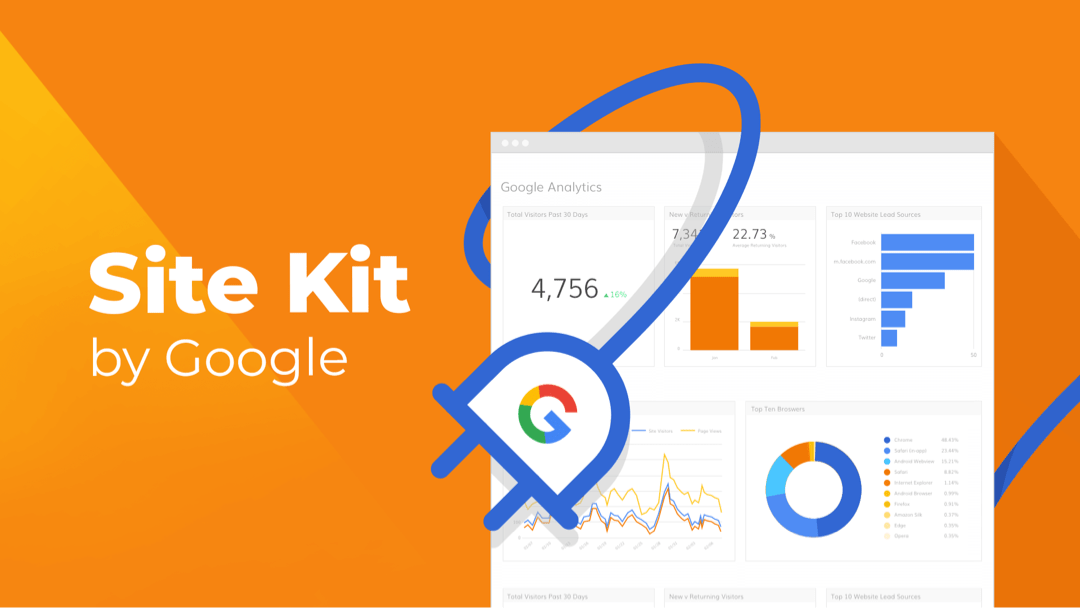
It is Google’s official WordPress plugin, designed to connect your website with several Google services, including Google Analytics, Google Search Console, PageSpeed Insights, AdSense, and Google Tag Manager.
At first glance, it sounds like an essential plugin. You can monitor website traffic, check search performance, view visitor statistics, and access performance insights without leaving your WordPress dashboard.
But there is another question worth asking:
Do you actually need another plugin running on your website just to see information that is already available through Google’s platforms?
Some website owners also worry that Site Kit might affect their website’s loading speed. After all, website performance matters. Nobody wants to install an additional plugin if it introduces unnecessary scripts or network requests.
So, let’s look at what Site Kit actually does, where it provides value, where it falls short, and whether keeping it installed makes sense.
1. What Is Site Kit by Google?
Site Kit is Google’s official WordPress plugin that connects your website to Google’s services and displays important website insights directly inside your WordPress dashboard.
Instead of visiting multiple Google platforms separately, you can access selected reports from one central location.
Here are some of its primary integrations:
Google Search Console
Search Console helps you understand how your website performs in Google Search.
You can monitor:
- Total clicks from Google Search.
- Search impressions.
- Average search position.
- Search queries that bring visitors to your website.
- Search performance of individual pages.
This is particularly useful for website owners who regularly publish content or work on organic SEO.
Google Analytics (GA4)
Google Analytics helps you understand how visitors interact with your website.
It provides information about:
- Website visitors and traffic sources.
- User engagement.
- Popular pages and landing pages.
- Events and conversions.
- Visitor behavior.
Site Kit allows you to view selected Analytics information without opening the Google Analytics dashboard separately.
PageSpeed Insights
PageSpeed Insights analyzes website performance and provides suggestions for improving loading speed and user experience.
You can access performance insights through Site Kit, although the full PageSpeed Insights experience is available directly through Google’s platform.
Google AdSense
If your website generates revenue through advertisements, Site Kit can help you monitor AdSense information from your WordPress dashboard.
Google Tag Manager
Google Tag Manager helps you manage tracking tags and scripts without repeatedly editing your website’s source code.
It is useful for more advanced tracking requirements, especially when managing multiple marketing and analytics tools.
The main advantage: Site Kit brings information from different Google services into one convenient WordPress dashboard.
However, convenience does not automatically mean better website performance.
2. Does Site Kit by Google Slow Down Your WordPress Website?
This is probably the most important question.
The short answer is: It can introduce some performance overhead, but the plugin itself is not necessarily the problem.
Google’s own documentation explains that installing and configuring Site Kit initially adds a verification meta tag to your website.
When you connect additional services, Site Kit can also insert their recommended code snippets.
For example:
- Connecting Google Analytics adds the Google Analytics tracking code.
- Connecting AdSense adds the necessary advertising-related code.
- Connecting Google Tag Manager introduces the Tag Manager container code.
These integrations can generate additional network requests when visitors load your website.
The important distinction is that these requests are associated with the Google services themselves, not necessarily with Site Kit’s dashboard functionality.
Google also explains that similar network requests would occur if you installed those services manually instead of using Site Kit.
In other words, removing Site Kit does not automatically make your website faster if you continue using the same Google tracking services.
What happens when you install Site Kit?
It helps to understand two different environments.
A. WordPress Dashboard (Backend)
Site Kit retrieves information from connected Google services and displays reports inside your WordPress administration area.
These dashboard operations happen in the backend. According to Google’s documentation, they do not directly affect the frontend performance experienced by regular website visitors.
B. Public Website (Frontend)
The situation changes when you connect services that require tracking scripts.
Depending on your configuration, visitors’ browsers may need to communicate with Google services.
These requests can introduce additional work, network activity, and potentially affect performance metrics.
The actual impact depends on several factors:
- Which Google services you have connected.
- How many third-party scripts are running.
- Your hosting server’s performance.
- Your website’s existing JavaScript workload.
- Network conditions and visitor location.
- Whether caching and optimization are configured correctly.
Therefore, it would be inaccurate to say that Site Kit always slows down WordPress websites.
It would also be inaccurate to claim that it has absolutely no performance impact.
The correct approach is to measure the impact on your own website.
3. How Site Kit by Google Helps Your Website
Despite the performance considerations, Site Kit offers several genuine advantages.
1. Everything in One Dashboard
You do not need to open multiple Google services whenever you want to check basic website statistics.
For small businesses, bloggers, and website owners, this convenience can save time.
2. Easy Google Analytics Integration
Setting up Google Analytics manually can require editing website code or configuring another integration tool.
Site Kit simplifies this process and provides a guided connection.
It is particularly helpful for people who are not comfortable editing WordPress theme files.
3. Search Performance Monitoring
You can view selected Search Console reports directly from WordPress.
This makes it easier to identify which pages receive search traffic and which search queries bring visitors to your website.
4. Page-Level Insights
Site Kit also provides selected insights for individual pages and posts.
For content creators, this can be useful when reviewing how published articles perform.
5. Useful for Beginners
Not everyone wants to work with multiple analytics dashboards.
Site Kit provides a relatively straightforward way to connect Google’s services without requiring extensive technical knowledge.
For beginners managing their first WordPress website, this can be a practical advantage.
4. Where Site Kit Falls Short
Now let’s look at the limitations.
Site Kit is useful, but it is not a complete website management, SEO, or performance optimization solution.
1. It Does Not Optimize Your Website Speed
This is a common misunderstanding.
Site Kit provides access to PageSpeed Insights reports, but it does not automatically optimize your website.
It will not independently:
- Compress all your website images.
- Configure advanced caching.
- Remove unused CSS.
- Optimize your database.
- Automatically fix render-blocking resources.
- Improve your hosting server response time.
It tells you about performance issues and provides insights. You still need to implement the necessary improvements.
2. You Can Access Google Services Without It
This is an important point.
You do not need Site Kit to use Google Analytics or Search Console.
You can access both services directly through their respective platforms.
For example:
- Google Analytics: https://analytics.google.com/
- Google Search Console: https://search.google.com/search-console
- PageSpeed Insights: https://pagespeed.web.dev/
You can also connect these services to WordPress using alternative methods.
3. It Does Not Replace an SEO Plugin
Site Kit is not a replacement for dedicated WordPress SEO plugins.
It does not provide the complete functionality of tools such as Rank Math or Yoast SEO.
For example, you still need appropriate solutions for:
- SEO titles and meta descriptions.
- XML sitemap management.
- Schema markup.
- Canonical URLs.
- On-page SEO recommendations.
Search Console data can help you understand your search performance, but it does not replace the work required to optimize your pages.
4. More Integrations Can Mean More Frontend Requests
Every additional third-party integration should have a clear purpose.
If your website does not need AdSense, Tag Manager, or other integrations, there is little reason to connect them just because they are available.
Keep your tracking setup as simple as your actual requirements allow.
5. Site Kit vs. Direct Google Integration: Which Is Better?
You have two main approaches to connecting Google services to WordPress.
| Feature | Site Kit | Manual Integration |
|---|---|---|
| Google Analytics | Supported | Supported |
| Search Console | Supported | Supported |
| WordPress dashboard reports | Yes | Not automatically |
| Initial setup | Beginner-friendly | Requires configuration |
| Code editing | Usually unnecessary | May be required |
| Performance | Depends on connected services | Depends on connected services |
| Control over implementation | Guided configuration | More implementation flexibility |
| Plugin dependency | Requires Site Kit | Not necessarily |
An important clarification: manual integration does not guarantee better performance.
If you add the same Google Analytics or Tag Manager scripts manually, the browser still has to load and execute those scripts.
The performance difference depends on implementation, configuration, and the services being used, not simply whether Site Kit is installed.
When Should You Choose Site Kit?
Choose Site Kit if:
- You want basic Google reports inside WordPress.
- You prefer a simple setup process.
- You manage your website without technical assistance.
- You regularly check Search Console and Analytics information.
- You want to avoid manually inserting tracking code.
When Should You Consider Manual Integration?
Consider another integration method if:
- You prefer managing tracking through a centralized system.
- You already have a reliable tracking implementation.
- You need more control over when tracking scripts load.
- You are working with advanced consent and tracking requirements.
- You want to minimize unnecessary plugin dependencies.
For more advanced implementations, a developer can configure tracking through Google Tag Manager or another appropriate integration method.
6. How to Check Whether Site Kit Is Affecting Your Website Speed
Instead of guessing, test your website.
This is the approach I recommend before removing any plugin.
Step 1: Test Your Website Before Making Changes
Visit Google PageSpeed Insights:
Enter your website URL and run a performance test.
Pay attention to:
- Largest Contentful Paint (LCP).
- Interaction to Next Paint (INP).
- Cumulative Layout Shift (CLS).
- Total Blocking Time (TBT) in the Lighthouse lab report.
- Third-party resources and JavaScript activity.
Remember that PageSpeed Insights provides both field data, when available, and laboratory test results. They measure different things.
Step 2: Inspect Third-Party Scripts
Use your browser’s developer tools and the Network tab to inspect which external resources load when someone visits your website.
Look for resources associated with:
- Google Analytics.
- Google Tag Manager.
- Google AdSense.
- Other third-party marketing and tracking services.
This helps you identify what is actually loading on the frontend.
Step 3: Review Your Site Kit Configuration
Inside WordPress, visit:
Site Kit → Settings → Connected Services
Review which Google services are connected.
Ask yourself:
- Do I actually use Google Analytics?
- Do I need Tag Manager?
- Is AdSense active on my website?
- Do I regularly use the dashboard reports?
Disconnect services that you genuinely do not need, after checking whether another tool or integration depends on them.
Step 4: Compare Performance Properly
If you want to test Site Kit’s actual impact, use a staging website.
Compare two configurations:
Test A: Site Kit active with the required Google services connected.
Test B: Site Kit disabled, with the same Google services configured through another method.
Keep everything else identical:
- Same hosting environment.
- Same theme and plugins.
- Same page content.
- Same caching configuration.
- Same tracking services.
- Same testing location and conditions.
Run multiple tests rather than relying on one PageSpeed score.
This is important because network conditions, server load, and other variables can affect individual results.
If you simply deactivate Site Kit and remove all tracking scripts, you are testing the impact of the tracking services as well as the plugin integration. That is not a fair comparison of Site Kit against manual integration.
7. Should You Keep or Remove Site Kit?
There is no universal answer. It depends on how you manage your website.
Here is a practical recommendation.
Keep Site Kit If You:
- Regularly check website traffic from WordPress.
- Want Search Console and Analytics reports in one place.
- Prefer simple integration over manual configuration.
- Use the connected Google services.
- Have no measurable performance issue caused by your current setup.
Consider Removing Site Kit If You:
- Never use its dashboard.
- Already manage all Google services elsewhere.
- Have another reliable method of integrating tracking.
- Want to reduce unnecessary plugin dependencies.
- Have tested your setup and identified a genuine performance issue related to its implementation.
One important thing: before deactivating Site Kit, check how your tracking codes are being added.
If Site Kit is responsible for inserting your Google Analytics code, disabling it may stop that tracking code from loading.
You should have an alternative implementation ready if you still need analytics.
Also, removing the plugin does not automatically remove every other tracking or advertising script installed separately.
8. Our Recommendation: Do You Really Need It?
At Maktomine, we believe every plugin installed on a WordPress website should serve a purpose.
The goal should not be to install as few plugins as possible. The goal should be to avoid unnecessary functionality and maintain a clean, efficient website.
Site Kit by Google is a useful plugin, especially for beginners, bloggers, and small business owners who want convenient access to Google Analytics and Search Console.
However, it is not essential for every WordPress website.
If you already manage your analytics through Google’s platforms or another reliable integration, you may not need Site Kit at all.
And if you are concerned about website speed, do not immediately blame the plugin.
Check which scripts are loading, identify the actual source of performance overhead, and compare your results under controlled conditions.
My final verdict: Site Kit is worth using when its convenience and dashboard features provide real value. But if you do not use those features, keeping it installed simply because Google created it is not a good reason.
A well-optimized WordPress website is not about having the most plugins or the fewest plugins. It is about using the right tools for the right reasons.
Frequently Asked Questions (FAQ)
1. Is Site Kit by Google necessary for WordPress?
No. Site Kit is optional. You can use Google Analytics, Search Console, and other Google services without installing the plugin.
2. Does Site Kit slow down WordPress?
It can introduce some frontend network activity when connected services such as Analytics, Tag Manager, or AdSense are enabled. However, the impact varies depending on configuration and website conditions.
3. Can I use Google Analytics without Site Kit?
Yes. You can connect Google Analytics through Google Tag Manager, a dedicated integration plugin, or a manually configured tracking implementation.
4. Does removing Site Kit improve PageSpeed scores?
Not necessarily. If the same Google tracking scripts remain installed through another method, the performance impact may remain similar.
5. Is Site Kit better than manually adding Google Analytics?
Site Kit is generally easier for beginners because it provides guided setup and dashboard reports. Manual integration offers more implementation flexibility but requires appropriate technical configuration.
6. Does Site Kit replace Rank Math or Yoast SEO?
No. Site Kit provides integrations with Google services and reporting. Rank Math and Yoast SEO offer dedicated search engine optimization functionality.
7. Should I install Site Kit on a business website?
It can be useful if you want convenient access to website traffic and search performance reports. However, it is not mandatory. Choose an integration method that fits your tracking and reporting requirements.
Final Thoughts
WordPress performance optimization is not about blaming every plugin that appears in a PageSpeed report.
Sometimes the problem is an unnecessarily large image. Sometimes it is poorly configured caching, excessive JavaScript, third-party scripts, or inadequate hosting.
The key is to understand what is happening before you make changes.
If you are managing a WordPress website, take time to review your installed plugins and connected services. Keep what provides genuine value and remove what you no longer need.
Build smarter. Keep your website efficient. Focus on what actually matters.
Article by Maktomine — WordPress Development & Digital Solutions.
Research notes and fact-checking
I used Google’s own documentation as the primary source for the technical claims, rather than relying on plugin reviews or assumptions.
| Research source | What it supports |
|---|---|
| Google: Site Kit Front-end Performance | What code Site Kit adds, frontend requests, and why removing Site Kit does not necessarily eliminate tracking overhead. |
| Official Site Kit Documentation | Supported integrations and plugin functionality. |
| Google: Why Use Site Kit? | Benefits and intended users. |
| Google: Installation and Setup | Installation, setup, permissions, and connected services. |
| WordPress.org Plugin Listing | Official plugin description and supported Google products. |
At Maktomine, we build modern, SEO-friendly, AI-ready WordPress websites that help businesses improve customer engagement, streamline operations, and grow online. Whether you’re launching a new site or upgrading an existing one, our team can help you implement practical AI features that deliver real business value.
Contact us today to future-proof your website for 2026 and beyond.
If this article helped you, share it with your friends.
If you have questions, suggestions, or confusion—leave a comment below. Your website journey can start today, even with zero investment